
How to Use Magnet Links: A Step-by-Step Guide for Beginners

Last Updated: November 17, 2026
 Total View: 66
Submitting the form below will ensure a prompt response from us.
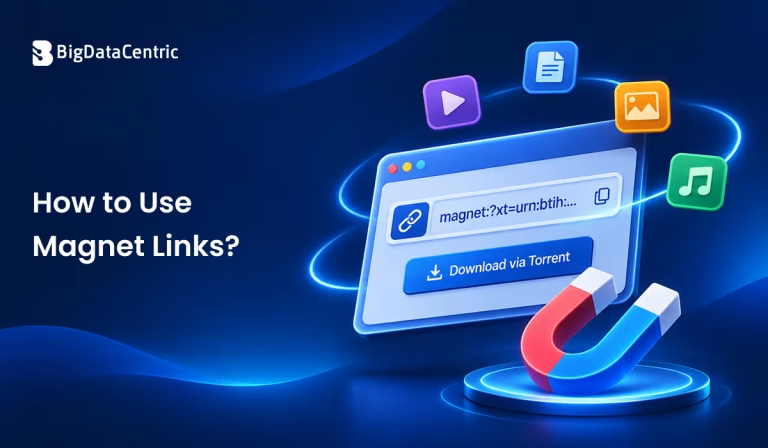
Magnet links provide a convenient way to access files through peer-to-peer sharing. Unlike traditional download links, they use a content identifier to help a compatible BitTorrent client locate the required files.
This guide explains How to Use Magnet Links, how to open them on different operating systems, and how to troubleshoot common issues.
Note: Only download or share content you have the legal right to access.
What is a Magnet Link?
A magnet link is a hyperlink that identifies content shared through peer-to-peer networks. Instead of pointing to a file on a specific server, it contains information that helps a BitTorrent client locate the content.
A magnet link generally looks like this:
magnet:?xt=urn:btih:EXAMPLE_HASH
When opened, a compatible client reads the identifier and searches for peers sharing the matching content.
How Do Magnet Links Work?
Magnet links use peer-to-peer technology to locate and transfer files. The client reads the content identifier, discovers available peers, retrieves the required metadata, and starts transferring data.
The basic process is:
Click Magnet Link
       ↓
Open BitTorrent Client
       ↓
Read Content Identifier
       ↓
Find Available Peers
       ↓
Retrieve Metadata
       ↓
Start File Transfer
This process allows users to start a transfer without downloading a separate .torrent file.
Magnet Links vs Torrent Files: What is the Difference?
Both magnet links and torrent files initiate BitTorrent transfers, but they provide the initial content information differently.
| Parameter | Magnet Link | Torrent File |
|---|---|---|
| Format | Hyperlink | .torrent file |
| Separate file | Not required | Required |
| Initial metadata | Retrieved by the client | Included in the file |
| Sharing | Easy to copy and share | Requires sharing the file |
| Client required | Yes | Yes |
What Do You Need to Open a Magnet Link?
Before opening a magnet link, you need a compatible BitTorrent client, an active internet connection, and enough storage space.
Popular clients include qBittorrent, Transmission, and Deluge. After installation, configure the application to handle magnet links.
An internet connection helps the client discover peers, while sufficient storage ensures that the downloaded content can be saved successfully.
7 Easy Steps: How to Use Magnet Links
Follow these steps to open and use a magnet link:
Step 1: Install a BitTorrent Client
Download and install a reputable client such as qBittorrent or Transmission.
Step 2: Find a Legitimate Magnet Link
Get the link from a trusted source that provides content you are authorized to download.
Step 3: Click the Magnet Link
Open the link in your browser. If prompted, allow the browser to launch your installed BitTorrent client.
Step 4: Review the Content Information
Wait for the client to retrieve metadata. Check the content name, included files, and total size.
Step 5: Choose the Download Location
Select a folder to save the files and confirm you have enough storage space.
Step 6: Start and Monitor the Transfer
Start the transfer and monitor its progress, download speed, and available peers.
Step 7: Verify and Open the Completed Files
After completion, locate the files and scan unfamiliar content with updated security software before opening them.
How to Open Magnet Links in qBittorrent?
Open qBittorrent after installing it. If your browser is configured to recognize magnet links, clicking one should launch the application automatically.
If the link does not open, copy its complete address. In qBittorrent, select the option to add a torrent link, paste the magnet link, and confirm. Wait for the metadata to load, review the files, and start the transfer.
How to Use Magnet Links on Windows?
Install a compatible BitTorrent client on Windows and allow it to handle magnet links during setup. Click the magnet link in your browser and approve the prompt to open the application.
If nothing happens, check the magnet protocol association in your browser or application settings. You can also copy the link and add it manually to your client.
How to Use Magnet Links on macOS?
Download and install a compatible BitTorrent client on your Mac. Open the magnet link through your browser and select the installed client if macOS asks which application should handle it.
If automatic opening fails, copy the magnet link and paste it directly into the client.
How to Use Magnet Links on Linux?
Linux users can use applications such as Transmission, qBittorrent, or Deluge. Once installed, configure the desktop environment or browser to open magnet links with the selected application.
Alternatively, copy the magnet URI and add it manually through the client.
Why is My Magnet Link Not Working?
A magnet link may not work because the required client is missing, browser settings are incorrect, metadata is unavailable, or no peers are online.
Check that a compatible client is installed and associated with the magnet protocol. If metadata takes too long to load, peer availability may be limited. Firewall settings or network restrictions can also affect connectivity.
Is it Safe to Use Magnet Links?
Magnet links are not inherently harmful, but the files they share may pose security risks. Always use links from trusted sources and verify that the content is legitimate.
Review the included files before starting a transfer. Be especially careful with unfamiliar executable files and archives. Keep your operating system and security software updated, and scan downloaded files before opening them.
Common Mistakes to Avoid When Using Magnet Links
Avoid opening magnet links from unknown sources or downloading content without checking its legitimacy. Do not open unfamiliar files immediately after a transfer finishes; scan them first.
Also, check available storage before starting large transfers. Remember that BitTorrent clients may upload data to other peers, so review your client’s settings and follow applicable network policies.
How Can BigDataCentric Help With Software Development?
BigDataCentric helps businesses develop scalable software applications, data-driven platforms, and custom digital solutions. We build reliable systems with strong performance, security, and integration.
Our development team also supports businesses throughout the software development lifecycle, from understanding project requirements and selecting suitable technologies to developing and integrating customized solutions. We focus on creating flexible applications that adapt to changing business needs and support long-term growth.
Build Scalable and Reliable Software Solutions
Partner with BigDataCentric to develop secure, high-performance applications tailored to your business needs.
Conclusion
Using magnet links involves installing a compatible BitTorrent client, opening a legitimate link, reviewing its content information, and starting the transfer. Whether you use Windows, macOS, or Linux, the basic process is similar.
Always verify the source, check downloaded files, and follow applicable usage and network policies.


Jayanti Katariya is the CEO of BigDataCentric, a leading provider of AI, machine learning, data science, and business intelligence solutions. With 18+ years of industry experience, he has been at the forefront of helping businesses unlock growth through data-driven insights. Passionate about developing creative technology solutions from a young age, he pursued an engineering degree to further this interest. Under his leadership, BigDataCentric delivers tailored AI and analytics solutions to optimize business processes. His expertise drives innovation in data science, enabling organizations to make smarter, data-backed decisions.
Latest From Our Q&A
Stay updated with technical insights, industry trends, and the latest technology developments.