

Transforming Business with
AI/ML Solutions
Let your business get a competitive edge by unlocking the power of AI and ML

TRUSTED BY







17+
Years of Experience

250+
Developers

20+
AI Solutions

500+
Global Clients

45+
Technology Expertise

40+
AI Projects Delivered
Driving Intelligent Transformation Through Advanced AI Solutions
At BigDataCentric, we deliver a comprehensive suite of AI and data-driven services designed to help organizations innovate, automate, and scale intelligently. From predictive modeling and natural language understanding to enterprise-grade LLMs and system integration, we empower businesses to harness the full potential of Artificial Intelligence for real-world impact.

Artificial Intelligence Development Services
We design and deploy intelligent AI solutions that automate processes, enhance decision-making, and unlock new business opportunities. Our experts combine advanced algorithms with deep domain knowledge to deliver custom AI applications aligned with your goals. From strategy to execution, we ensure seamless adoption of AI that drives innovation, improves accuracy, and creates measurable value across operations.
Explore Our Service
Machine Learning Development Services
Our Machine Learning services empower businesses to turn data into actionable insights. We develop models for classification, forecasting, and predictive analytics that adapt and evolve with changing trends. By leveraging supervised, unsupervised, and deep learning techniques, we help organizations anticipate outcomes, optimize workflows, and enhance efficiency across departments and industries.
Explore Our Service
Natural Language Processing Services
Our NLP solutions redefine how businesses understand, analyze, and communicate through language. From intelligent chatbots and document summarization to sentiment analysis and entity recognition, we enable seamless interaction between humans and machines. By extracting meaning from unstructured data, we help you enhance customer experience, automate communication, and make smarter content-driven decisions.
Explore Our Service
Custom SaaS AI Development Services
We build scalable, cloud-based AI-powered SaaS solutions tailored to your business model and customer needs. Our SaaS AI expertise enables enterprises to integrate intelligent features like predictive analytics, recommendation systems, and automation tools into their platforms. From concept to deployment, we ensure performance, scalability, and seamless integration — empowering you to deliver smarter, AI-driven digital products faster.
Explore Our ServiceWords From Our Clients
Proven results. Genuine experiences. Lasting partnerships. See what our clients say about working with us.
The business intelligence solution developed by BigDataCentric has completely changed how we analyze performance across departments. Their dashboards are intuitive, insightful, and tailored to our needs. The team provided exceptional support and ensured a smooth implementation from start to finish.

BigDataCentric delivered a data science solution that helped us identify customer trends we had never noticed before. Their ability to turn complex data into meaningful business insights was impressive. The project was delivered on time, within budget, and with excellent attention to detail.

From strategy to execution, BigDataCentric proved to be a reliable technology partner. Their team developed advanced analytics models that helped us optimize operations and reduce costs. They consistently communicated progress and provided valuable recommendations throughout the engagement.

We were looking for a partner who could modernize our reporting process, and BigDataCentric delivered exactly that. Their expertise in business intelligence and data visualization helped us gain real-time visibility into our KPIs. The impact on productivity and decision-making has been remarkable.
BigDataCentric stands out for their ability to combine technical excellence with business understanding. Their team built a scalable analytics solution that enabled us to make smarter, data-driven decisions. The project was managed professionally, and the outcomes surpassed our expectations.

We partnered with BigDataCentric for a machine learning project, and the experience was outstanding. Their team quickly understood our business challenges and delivered a predictive solution that significantly improved forecasting accuracy. They were professional, responsive, and highly knowledgeable throughout the entire process.

BigDataCentric helped us transform scattered business data into actionable insights. Their analytics team created custom dashboards that gave us complete visibility into our operations and customer behavior. The results were immediate, and decision-making became much faster. Their expertise, communication, and commitment to quality exceeded our expectations.
Innovations We’ve Delivered
Browse our portfolio to explore cutting-edge projects that bring efficiency and value to businesses.
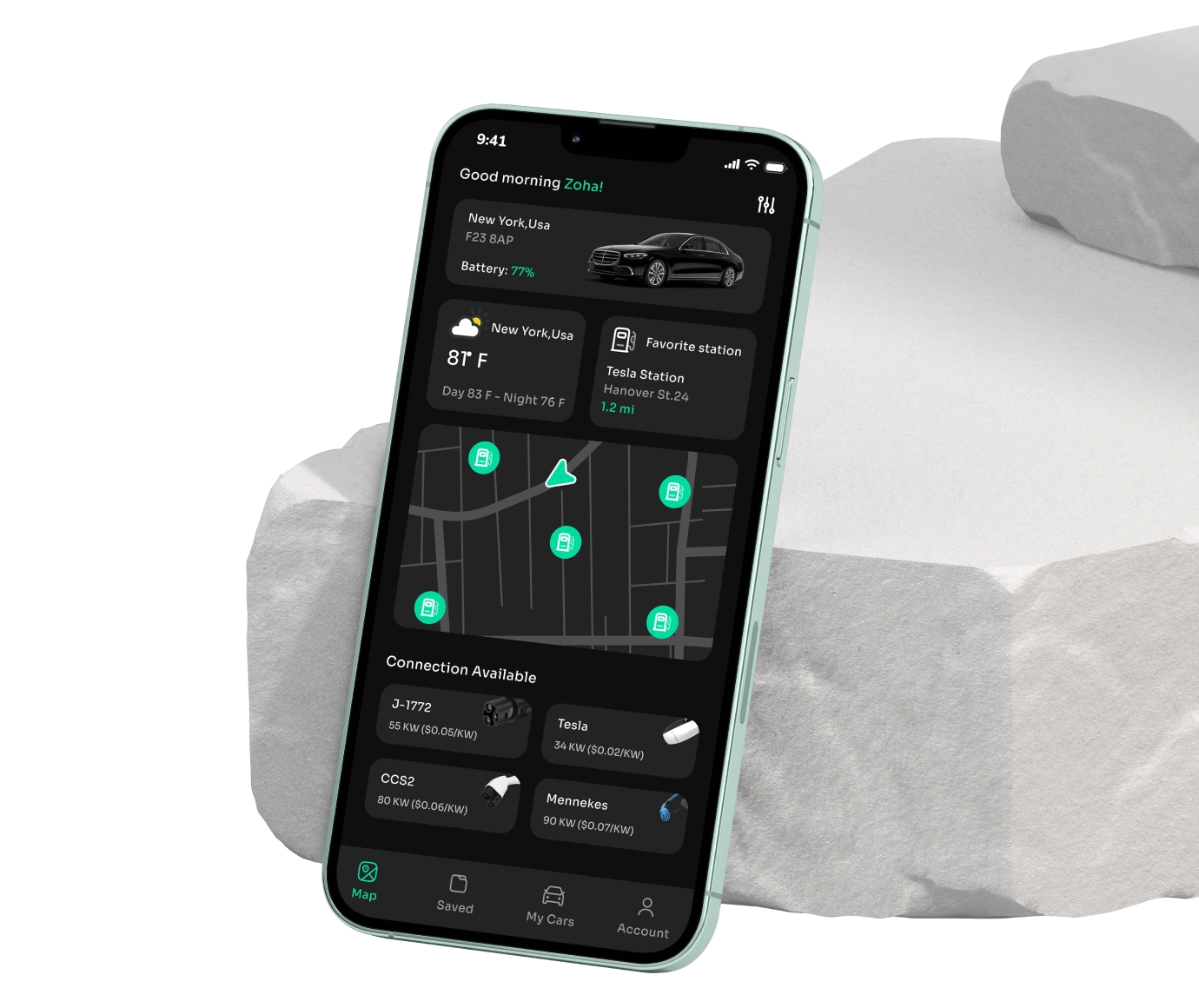

This user-friendly app perfectly connects you to a huge network of charging stations.
Transportation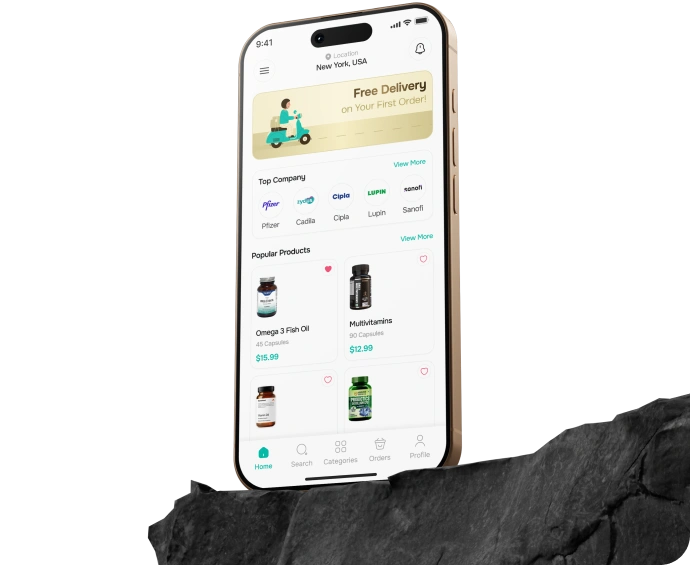
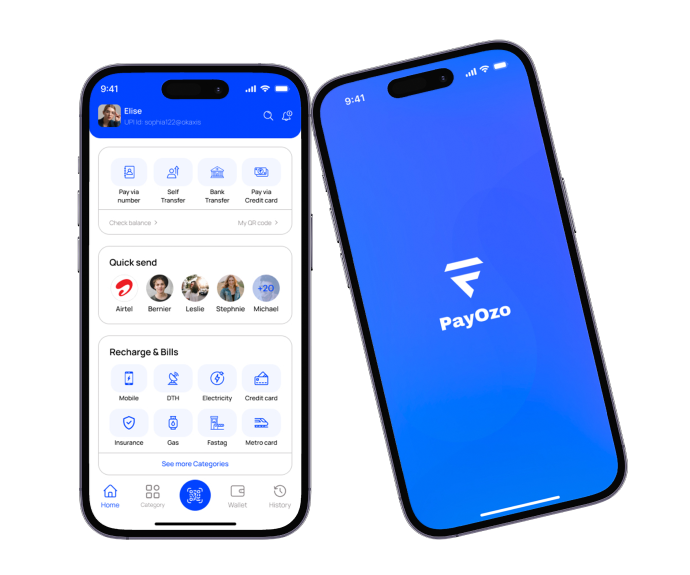
Technologies Stack We Use

AngularJS

Next

HTML

CSS

JavaScript

React
Angular

Vue

Node.js

Python

.NET Core

PHP

JAVA

Nest

AWS

Azure

GCP

Kubernetes

Jenkins

GitLab

GitHub

Ansible

Terraform

Azure DevOps

Splunk

Swift

Kotlin

React Native

Flutter

PWA

TensorFlow

PyTorch

Keras

Torch

SparkML

GPT

BERT
Our Proven Development Process
At BigDataCentric, we follow a structured and transparent process to deliver high-performing solutions. Every stage is designed to ensure innovation, quality, and measurable business impact.
Discovery & Insight Gathering
We begin by understanding your business goals, challenges, and data ecosystem to design the right AI-driven strategy.
Data Collection & Preparation
We gather, clean, and process high-quality data from multiple sources to build a reliable foundation for AI modeling.
Deployment & Integration
We seamlessly integrate the solution into your existing systems, ensuring smooth adoption and real-world impact.








Strategy & Planning
Our experts define project milestones, timelines, and technical frameworks to ensure smooth and efficient execution.
Model Development & Testing
Custom AI and ML models are developed and rigorously tested to ensure accuracy, scalability, and performance.
Continuous Monitoring & Support
Our team provides ongoing monitoring, updates, and optimization to keep your AI solutions performing at their best.
Our Proven Development Process
At BigDataCentric, we follow a structured and transparent process to deliver high-performing solutions.
Discovery & Insight Gathering
We begin by understanding your business goals, challenges, and data ecosystem to design the right AI-driven strategy.
Strategy & Planning
Our experts define project milestones, timelines, and technical frameworks to ensure smooth and efficient execution.
Data Collection & Preparation
We gather, clean, and process high-quality data from multiple sources to build a reliable foundation for AI modeling.
Model Development & Testing
Custom AI and ML models are developed and rigorously tested to ensure accuracy, scalability, and performance.
Deployment & Integration
We seamlessly integrate the solution into your existing systems, ensuring smooth adoption and real-world impact.
Continuous Monitoring & Support
Our team provides ongoing monitoring, updates, and optimization to keep your AI solutions performing at their best.
Partner With Us to Drive Intelligent Business Growth
At BigDataCentric, we deliver innovative, scalable, and data-driven solutions that empower businesses to make smarter decisions, automate processes, and accelerate growth. Partner with us for AI, ML, and advanced analytics solutions designed to create real impact.

Expertise & Tailored Solutions
Our team combines deep technical expertise with industry insights to deliver solutions designed for your unique business needs. We ensure every project is customized for maximum efficiency and impact.

Proven Track Record
We have successfully partnered with startups, SMEs, and enterprises, delivering intelligent solutions that generate measurable results. Our portfolio demonstrates reliability, innovation, and consistent client satisfaction.

Flexible & Adaptive Approach
We provide scalable, adaptable AI and data-driven solutions that align with your evolving goals and workflows. Our agile approach ensures your solution grows with your business.

Collaborative Partnership
From strategy to deployment, we work closely with your team to ensure solutions are fully aligned with your vision. Collaboration and transparency are at the heart of our process.

Future-Ready Innovation
We leverage the latest technologies in AI, ML, NLP, and LLMs to keep your business ahead of the curve. Our forward-thinking solutions prepare you for emerging trends and evolving market needs.

End-to-End Support
Beyond deployment, we offer ongoing monitoring, optimization, and maintenance to ensure your AI solutions continue to deliver value. Our support guarantees performance, reliability, and continuous improvement over time.
Latest From Our Blog
Stay updated with technical insights, industry trends, and the latest technology developments.