How to Git Clone a Specific Branch?

 Total View: 58
Submitting the form below will ensure a prompt response from us.
When working with Git repositories, you may not always need to download every branch. The git clone specific branch approach allows developers to clone a repository and immediately check out the branch they need.
By default, git clone downloads the repository and checks out its default branch. However, you can use the -b or –branch option to specify a particular branch during cloning.
How to Clone a Specific Branch in Git?
The basic command is:
git clone -b
For example, to clone a branch named development:
git clone -b development https://github.com/example/project.git
Git downloads the repository and checks out the development branch automatically.
You can then move into the repository:
cd projectCheck the current branch with:
git branchThe output should show:
* developmentHow Do You Clone Only a Specific Branch?
If you want to avoid fetching the other branches, use the –single-branch option along with -b:
git clone -b development --single-branch https://github.com/example/project.gitThis tells Git to clone the repository while fetching history associated with the specified branch rather than fetching remote-tracking information for all branches.
This can be particularly useful when working with large repositories where you only need one branch.
Clone a Specific Branch With a Custom Directory
You can also specify the directory where Git should create the local repository:
git clone -b development --single-branch https://github.com/example/project.git my-project
The repository will be cloned into the my-project directory.
What Is the Difference Between -b and –single-branch?
The -b option and –single-branch option serve different purposes.
| Option | Purpose | Example |
|---|---|---|
| -b <branch> | Checks out the specified branch after cloning | git clone -b development URL |
| –branch <branch> | Long form of -b | git clone –branch development URL |
| –single-branch | Limits the clone to the history of the selected branch | git clone -b development –single-branch URL |
| Repository URL | Specifies the remote Git repository | https://github.com/example/project.git |
For example:
git clone -b feature-login --single-branch https://github.com/example/project.git
Here, feature-login is checked out, and the clone is limited to that branch’s history.
Can You Clone a Specific Branch Without Cloning the Full Git History?
Yes. If you only need the latest version of a branch and do not need its complete commit history, you can combine –single-branch with –depth.
For example:
git clone -b development --single-branch --depth 1 https://github.com/example/project.git
The –depth 1 option creates a shallow clone containing only the latest commit from the selected branch.
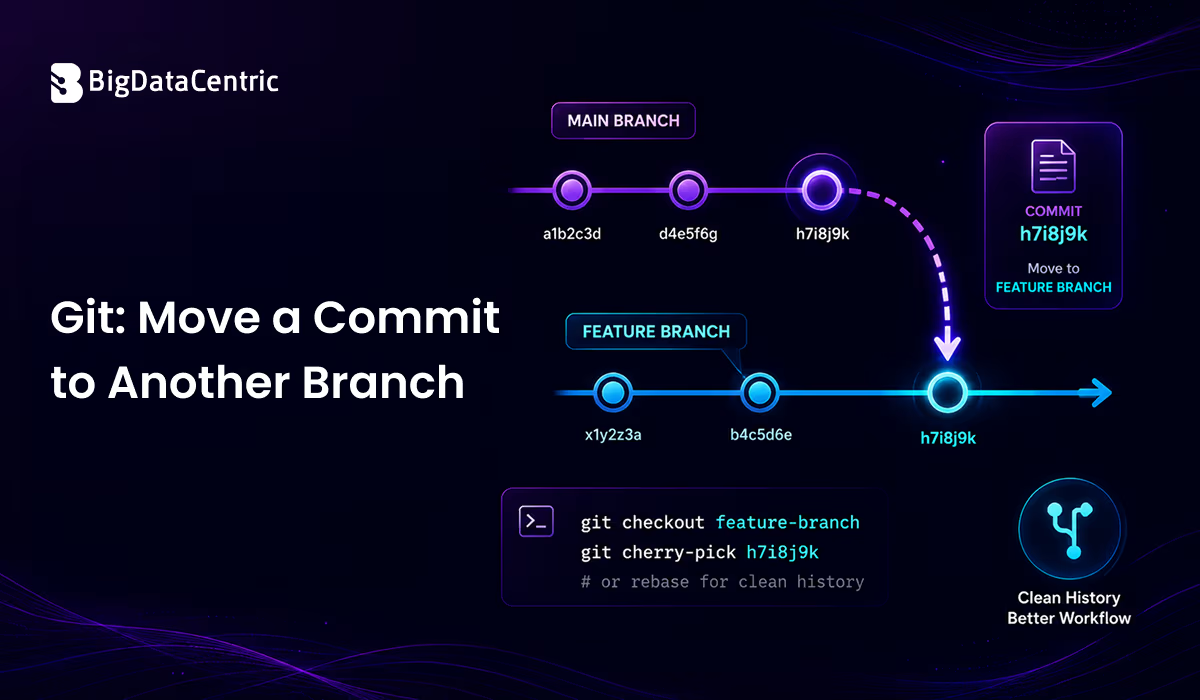
This can reduce download size and speed up cloning, especially for repositories with extensive histories. However, shallow clones have limitations when working with older commits. For example, if you need to git move commit to another branch, you may need access to additional commit history before performing the required Git operations.
Therefore, consider using a full clone when you need to work extensively with previous commits or move commits between branches.
How Do You Verify the Cloned Branch?
After cloning the repository, use:
git branchFor example:
* developmentYou can also check the remote repository configuration:
git remote -vTo see the current branch:
git branch --show-currentThe command may return:
developmentHow Do You Clone a Remote Branch That Is Not the Default Branch?
You can clone any existing remote branch by specifying its name:
git clone --branch feature-payment https://github.com/example/project.gitIf the branch exists on the remote repository, Git checks it out after cloning.
If you receive an error such as:
fatal: Remote branch feature-payment not found in upstream originverify the branch name and confirm that the branch exists on the remote repository.
You can inspect available remote branches with:
git ls-remote --heads https://github.com/example/project.gitThis can help verify the exact branch name before cloning.
What If You Already Cloned the Repository?
If you have already cloned the repository and want to switch to another branch, you generally do not need to clone it again.
First, fetch the remote branch information:
git fetch originThen switch to the branch:
git switch developmentIf the branch does not already exist locally, you can create a local tracking branch:
git switch --track origin/developmentOlder Git versions commonly use:
git checkout -b development origin/developmentThe git switch command is the more focused modern command for switching branches.
What Is the Best Command for Git Clone Specific Branch?
The command depends on what you need.
Clone and Check Out a Specific Branch
git clone -b development https://github.com/example/project.git
Clone Only One Branch
git clone -b development –single-branch https://github.com/example/project.git
Clone Only the Latest Commit
git clone -b development –single-branch –depth 1 https://github.com/example/project.git
For a large repository where you only need the latest code from one branch, the third option can significantly reduce the amount of history downloaded.
What to Remember
Using git clone specific branch commands allows developers to start working with a particular branch without manually switching branches after cloning.
| Requirement | Git Command | Purpose |
|---|---|---|
| Clone a specific branch | git clone -b branch URL | Clone and check out a specific branch |
| Clone one branch only | git clone -b branch –single-branch URL | Fetch only the selected branch |
| Clone latest branch version | git clone -b branch –single-branch –depth 1 URL | Clone only the latest commit |
| Show current branch | git branch –show-current | Display the currently active branch |
| List remote branches | git branch -r | View available remote branches |
| Switch to an existing branch | git switch branch | Switch to another local branch |
Tips for Cloning a Specific Git Branch
- Verify the branch name before cloning.
- Use -b or –branch to select the branch.
- Use –single-branch when you only need one branch.
- Use –depth 1 when you only need the latest commit.
- Avoid shallow clones if you need extensive Git history.
- Use git switch to change branches after cloning.
Need Help With Git Development?
Work more efficiently with Git repositories, branching strategies, and development workflows. Get expert assistance with Git and software development projects.
Final Thoughts
The git clone specific branch command is useful when you want to start working directly with a particular branch of a remote repository. Using git clone -b checks out the requested branch automatically, while –single-branch can limit the fetched branch history.
For repositories where only the latest code is required, combining –single-branch with –depth 1 can create a smaller and faster shallow clone.


Jayanti Katariya is the CEO of BigDataCentric, a leading provider of AI, machine learning, data science, and business intelligence solutions. With 18+ years of industry experience, he has been at the forefront of helping businesses unlock growth through data-driven insights. Passionate about developing creative technology solutions from a young age, he pursued an engineering degree to further this interest. Under his leadership, BigDataCentric delivers tailored AI and analytics solutions to optimize business processes. His expertise drives innovation in data science, enabling organizations to make smarter, data-backed decisions.