
How to Move a Git Commit to Another Branch?

 Total View: 60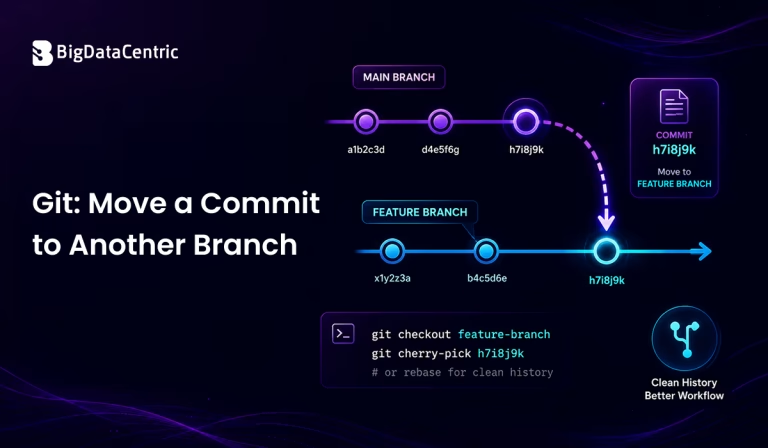
Submitting the form below will ensure a prompt response from us.
When working with Git, developers sometimes commit changes to the wrong branch. Instead of manually recreating the changes, Git provides several ways to move a commit to another branch.
The right approach depends on whether the commit has already been pushed to a remote repository, whether you want to remove it from the original branch, and whether you need to move one commit or several commits.
For example, if a commit was accidentally made on main but should have been made on feature, you can use git cherry-pick to apply that commit to the correct branch.
git switch feature
git cherry-pick
If the original commit should also be removed from main, you can then reset the original branch when appropriate.
What Does it Mean to Move a Git Commit?
Git does not literally move a commit from one branch to another. A Git branch is essentially a movable reference pointing to a commit.
Suppose your repository looks like this:
A---B---C  main

\

D  feature
If commit C was accidentally created on main but belongs on feature, you can apply that commit to feature using git cherry-pick.
After cherry-picking, the history might look conceptually like:
A---B---C  main

\

D---C'  feature
C’ contains the changes from C, but it is technically a new commit with a different commit ID.
If you subsequently remove C from main, the branches can be reorganized so the change exists only on the intended branch.
How to Move a Commit to Another Branch Using Git Cherry-Pick?
The most common method for moving an individual commit is git cherry-pick.
First, identify the commit hash:
git log --oneline
You may see:
a81f4c2 Add customer validation
b37d8e1 Update API configuration
c92ab45 Initial project setup
If a81f4c2 is the commit you want to move, switch to the destination branch:
git switch feature
Then cherry-pick the commit:
git cherry-pick a81f4c2
Git applies the changes introduced by that commit to the current branch.
You can verify the result with:
git log --oneline
How to Move an Unpushed Commit to Another Branch?
If you accidentally committed changes to the wrong local branch and have not pushed the commit, you can move the commit using a branch switch followed by a reset.
Suppose the commit was accidentally created on main.
First, identify the commit:
git log --oneline
Then create or switch to the destination branch while keeping the commit:
git switch -c feature
Now the new branch contains the commit.
Next, return to main:
git switch main
Move main back to the commit before the accidental commit:
git reset --hard HEAD~1
The resulting history is conceptually:
Before:

A---B---C  main

After:

A---B      main

\

C    feature
The commit now belongs to the feature branch, while main points to the previous commit.
Important Note About git reset –hard
git reset –hard changes the current branch and working tree. Make sure you understand which branch you are on before running it.
It is generally safer to confirm your current branch with:
git branch --show-current
How to Move a Commit That Has Already Been Pushed?
Moving a commit that has already been pushed requires more care, as other developers may have already pulled the existing branch history.
A safer approach is often to copy the commit to the correct branch using cherry-pick:
git switch feature

git cherry-pick
Then push the destination branch:
git push origin feature
If you also need to remove the commit from the original remote branch, the appropriate approach depends on whether rewriting that branch’s history is acceptable.
For a shared branch, avoid rewriting history unless your team has agreed to it.
How to Move the Last Commit to Another Branch?
If the most recent commit is the one you accidentally created on the wrong branch and it has not been pushed, you can use the following workflow. If needed, you can also know how to undo the last Git commit before moving it to another branch.
Suppose you’re currently on main:
git status
Create a new branch containing the current commit:
git switch -c feature
Then return to main:
git switch main
Move main back one commit:
git reset --hard HEAD~1
You can check the resulting branches:
git log --oneline --all --decorate
This is a convenient approach when the accidental commit is the latest commit and you want to preserve it on a new branch.
How to Move Multiple Git Commits to Another Branch?
If several commits need to be moved, cherry-pick can accept multiple commit hashes.
For example:
git switch feature

git cherry-pick abc1234 def5678 ghi9012
You can also cherry-pick a range of commits.
For example:
git cherry-pick A^..C
This applies commits from A through C, inclusive.
Before using a commit range, review the history carefully:
git log --oneline
This helps ensure that you’re selecting the intended commits.
How to Move a Commit Using a New Branch?
Sometimes you don’t actually need to remove the commit from its current branch. If you simply want a new branch that starts from the current commit, you can create one directly:
git switch -c feature
This creates and switches to feature at the current commit.
For example:
A---B---C  main

^

|

feature
Both branch names point to the same commit.
This method is useful when you want to continue development from the current state without changing the existing branch history.
What is the Difference Between Cherry-Pick and Reset?
git cherry-pick and git reset serve different purposes.
git cherry-pick
cherry-pick copies the changes introduced by an existing commit and creates a new commit on the current branch.
git switch feature

git cherry-pick
Use it when you need a particular commit on another branch.
git reset
reset moves the current branch reference to another commit.
git reset --hard HEAD~1
Use it carefully when you need to remove an unpushed commit from the current branch.
In many workflows, the two commands can be used together: cherry-pick puts the change on the destination branch, while reset removes the accidental commit from the original local branch.
What if There Are Conflicts During Cherry-Pick?
A cherry-pick can produce conflicts if the selected commit changes code that differs significantly on the destination branch.
Git may stop and report a conflict.
Check the affected files:
git status
After resolving the conflicts, stage the files:
git add .
Then continue the cherry-pick:
git cherry-pick --continue
If you decide that you don’t want to continue:
git cherry-pick --abort
This cancels the cherry-pick operation and returns the repository to its previous state.
How to Find the Commit Hash to Move?
Before moving a commit, you need its commit ID.
Use:
git log --oneline
For example:
f51a7c9 Fix authentication issue

b92cd11 Add dashboard component

a47ef32 Create project structure
The short hash f51a7c9 can be used with git cherry-pick:
git cherry-pick f51a7c9
You can also inspect a particular commit using:
git show f51a7c9
This lets you verify the changes before applying the commit to another branch.
How to Move a Commit Without Losing Changes?
If you are concerned about losing changes, avoid immediately using destructive commands such as git reset –hard without verifying your branch and commit history.
A useful workflow is:
git log --oneline

git branch --show-current
Then create a destination branch:
git switch -c feature
If necessary, return to the original branch and carefully move it back:
git switch main

git reset --hard HEAD~1
Before performing a destructive reset, you can create a backup branch:
git branch backup-before-reset
This gives you another reference to the current commit if you need to recover it.
Common Mistakes When Moving Git Commits
Moving the Wrong Commit
Always inspect the commit history before cherry-picking:
git log --oneline
Using the wrong hash can cause unintended changes.
Running Reset on the Wrong Branch
Check your current branch first:
git branch --show-current
Then perform the reset only if you’re certain you’re modifying the intended branch.
Rewriting Shared Branch History
If a commit has already been pushed to a shared branch, resetting and force-pushing can disrupt other developers.
Before rewriting history, coordinate with your team.
Forgetting to Push the Destination Branch
After successfully moving the commit to the destination branch, push it when appropriate:
git push origin feature
Build and Manage Better Software
Leverage our software engineering expertise to create scalable applications and efficient development processes tailored to your business needs.
Git Move Commit to Another Branch: Quick Reference
| Requirement | Recommended Command | Purpose |
|---|---|---|
| View commits | git log –oneline | View commit history |
| Check current branch | git branch –show-current | Confirm the active branch |
| Create a branch at current commit | git switch -c feature | Create and switch to a new branch |
| Switch branches | git switch feature | Move to the destination branch |
| Copy a commit | git cherry-pick <commit-hash> | Apply a specific commit to another branch |
| Move local branch back one commit | git reset –hard HEAD~1 | Remove the latest commit from the current local branch |
| Continue after conflict resolution | git cherry-pick –continue | Complete a cherry-pick after resolving conflicts |
| Cancel cherry-pick | git cherry-pick –abort | Stop the cherry-pick and restore the previous state |
| Push destination branch | git push origin feature | Push the updated branch to the remote repository |
Conclusion
Knowing how to move a Git commit to another branch is useful when a commit is accidentally made on the wrong branch or when a particular change needs to be applied to another development branch.
For a single commit, git cherry-pick is usually the most straightforward solution:
git switch feature

git cherry-pick
If the accidental commit is local and has not been pushed, you can create a new branch containing the commit and then move the original branch backward:
git switch -c feature

git switch main

git reset --hard HEAD~1
When working with commits that have already been pushed, take extra care before rewriting history. For shared branches, copying the desired commit with cherry-pick is often safer than resetting and force-pushing.
By understanding cherry-pick, reset, branch creation, and conflict handling, developers can correct misplaced commits while keeping their Git workflow organized and predictable.


Jayanti Katariya is the CEO of BigDataCentric, a leading provider of AI, machine learning, data science, and business intelligence solutions. With 18+ years of industry experience, he has been at the forefront of helping businesses unlock growth through data-driven insights. Passionate about developing creative technology solutions from a young age, he pursued an engineering degree to further this interest. Under his leadership, BigDataCentric delivers tailored AI and analytics solutions to optimize business processes. His expertise drives innovation in data science, enabling organizations to make smarter, data-backed decisions.