How to Undo the Last Commit in Git?

 Total View: 87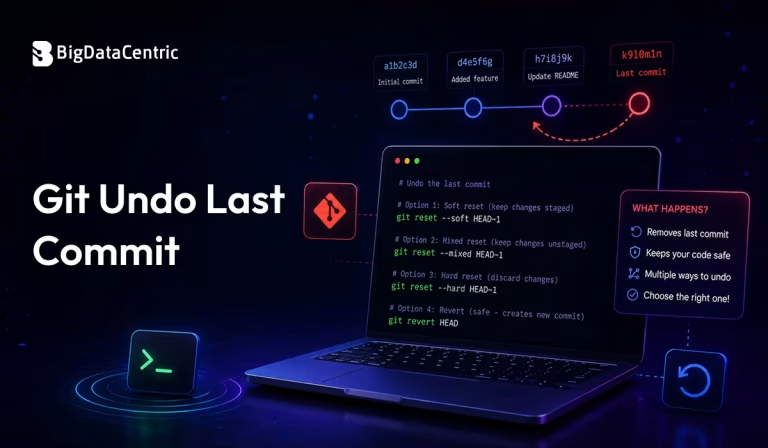
Submitting the form below will ensure a prompt response from us.
Git is one of the most widely used version control systems for managing source code and collaborating on software projects. While committing changes is a routine part of development, mistakes can happen—you might commit the wrong files, write an incorrect commit message, or simply realize that the latest commit should be modified or removed.
Fortunately, Git provides multiple ways to undo the last commit depending on whether you want to keep the changes, discard them, or safely reverse a commit that has already been pushed to a remote repository.
In this guide, you’ll learn the most common methods to Undo the Last Git Commit, understand when to use each command, and follow best practices to avoid losing valuable work.
When Should You Undo the Last Git Commit?
You may need to undo the most recent commit in situations such as:
- The commit contains incorrect or incomplete code.
- You accidentally committed the wrong files.
- The commit message contains errors.
- You need to combine the last commit with additional changes.
- The commit was created before proper testing.
- You want to remove sensitive information before pushing.
Choosing the right Git command depends on whether the commit has been pushed and whether you want to preserve the changes.
How to Undo the Last Git Commit?
Undo the Last Commit While Keeping Changes
If you want to remove the commit but keep all your changes in the staging area, use:
git reset --soft HEAD~1
What This Does
- Removes the latest commit.
- Keeps all file changes.
- Leaves changes staged for the next commit.
This method is useful when you simply want to edit the commit message or add more files before committing again.
Undo the Last Commit and Keep Changes Unstaged
If you want to undo the commit but continue editing the files, use:
git reset HEAD~1

or

git reset --mixed HEAD~1
What This Does
- Removes the latest commit.
- Preserves all file changes.
- Unstages the modified files.
This is one of the most commonly used reset options during development. If you’re not ready to commit your current changes or want to save them before making additional modifications, consider stashing your changes in Git. This lets you temporarily store your work and restore it whenever needed without affecting your commit history.
Undo the Last Commit and Discard Changes
If the last commit and all associated changes are no longer needed, use:
git reset --hard HEAD~1
What This Does
- Deletes the latest commit.
- Removes all changes from the working directory.
- Cannot be easily recovered without Git history references.
Use this command only when you’re certain the changes are no longer required.
Undo the Last Commit After Pushing
If you’ve already pushed the commit to a shared repository, avoid using git reset because it rewrites commit history.
Instead, use:
git revert HEAD
What This Does
- Creates a new commit that reverses the previous commit.
- Preserves project history.
- Safe for shared repositories.
This is the recommended approach for team environments.
You Might Also Like:
GitHub Actions Environment Variables: How to Use, Manage, and Secure Them
Amend the Last Commit
If you only need to update the most recent commit—for example, to fix the commit message or include forgotten files—you can use:
git commit --amend
Example
git add README.md
git commit --amend
This opens your configured text editor, allowing you to modify the commit message before saving the updated commit.
Additional Git Commands and Tips
Check Commit History Before Undoing
Before removing any commits, review your commit history.
git log --oneline
Example Output
c5a3d8f Update login validation

b8f61d2 Add authentication API

1f84c90 Initial project setup
This helps you verify which commit to undo.
Undo Multiple Commits
To remove the last three commits while keeping changes staged:
git reset --soft HEAD~3
To completely discard them:
git reset --hard HEAD~3
Always double-check the number of commits before executing these commands.
Force Push After Reset (Use with Caution)
If you’ve reset a commit that has already been pushed and you intentionally want to overwrite the remote history, you’ll need to force-push.
git push --force
A safer alternative is:
git push --force-with-lease
The –force-with-lease option reduces the risk of accidentally overwriting teammates’ work.
Real-World Examples
Correct an Incorrect Commit Message
git commit –amend -m “Fix login authentication bug”
Remove the Last Commit but Keep All Changes
git reset –soft HEAD~1
Remove the Last Commit Permanently
git reset –hard HEAD~1
Safely Undo a Pushed Commit
git revert HEAD
Difference Between Reset and Revert
| Command | Removes Commit | Keeps History | Safe After Push |
|---|---|---|---|
| git reset –soft | Yes | No | No |
| git reset –mixed | Yes | No | No |
| git reset –hard | Yes | No | No |
| git revert | No (Creates a reverse commit) | Yes | Yes |
Understanding this difference helps you choose the appropriate command for your workflow.
Best Practices
Use git revert for Shared Repositories
It preserves commit history and avoids disrupting collaborators.
Review Commits Before Resetting
Use:
git log --onelineto confirm the commit you intend to undo.
Avoid –hard Unless Necessary
git reset –hard permanently removes uncommitted changes, so use it carefully.
Use Meaningful Commit Messages
Clear commit messages reduce the need for frequent amendments.
Create Backups Before Force Pushing
When rewriting Git history, ensure that important work is backed up or communicated to your team.
Common Mistakes to Avoid
Using git reset –hard Accidentally
Incorrect:
git reset --hard HEAD~1
This command permanently removes both the commit and associated changes.
If you want to keep your work, use:
git reset --soft HEAD~1
Force Pushing to Shared Branches
Avoid running:
git push --force
on shared branches unless absolutely necessary.
Instead, prefer:
git revert HEAD
to maintain a clean and collaborative Git history.
Build Reliable Software with Expert Developers
Our experienced development team helps businesses implement Git workflows, DevOps practices, and scalable software solutions.
Conclusion
Undoing the last Git commit is a common task that every developer encounters during software development. Whether you want to keep your changes, discard them, or safely reverse a commit that has already been pushed, Git provides multiple commands to handle each scenario effectively.
Commands like git reset –soft, git reset –mixed, git reset –hard, and git revert each serve different purposes. Understanding when to use them helps protect your project history, avoid unnecessary conflicts, and maintain a clean, organized Git workflow. By following best practices and reviewing your commit history before making changes, you can confidently manage your repository and recover from mistakes with ease.


Jayanti Katariya is the CEO of BigDataCentric, a leading provider of AI, machine learning, data science, and business intelligence solutions. With 18+ years of industry experience, he has been at the forefront of helping businesses unlock growth through data-driven insights. Passionate about developing creative technology solutions from a young age, he pursued an engineering degree to further this interest. Under his leadership, BigDataCentric delivers tailored AI and analytics solutions to optimize business processes. His expertise drives innovation in data science, enabling organizations to make smarter, data-backed decisions.