How to Change Git Remote URL?

 Total View: 56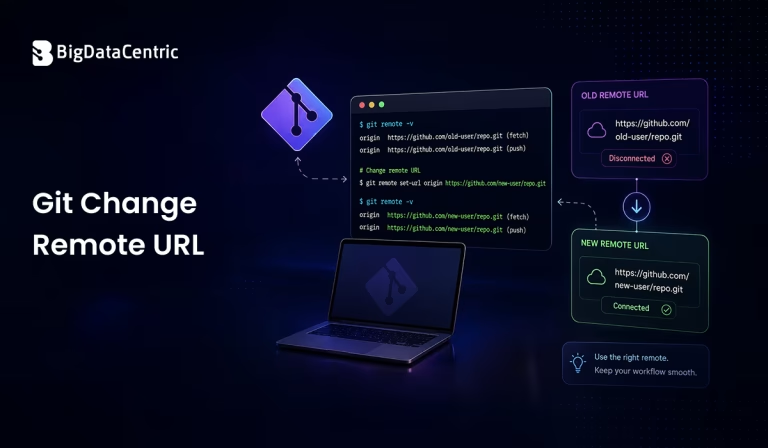
Submitting the form below will ensure a prompt response from us.
When working with Git repositories, you may need to change the Git remote URL for several reasons. For example, a repository may have moved to a different hosting service, the repository name may have changed, or you may want to switch from an HTTPS connection to SSH.
Git stores remote repository information in the local repository configuration. The most common remote is called origin, and you can update its URL without creating a new repository or losing your existing commits, branches, or working files.
The most common command for changing a Git remote URL is:
git remote set-url origin NEW_URL
For example:
git remote set-url origin https://github.com/example/project.git
After running this command, Git will use the new URL when you push or pull from the origin remote.
What is a Git Remote URL?
A Git remote is a reference to another repository, usually hosted on a platform such as GitHub, GitLab, or Bitbucket.
You can view the remote URL configured for your repository with:
git remote -v
A typical result looks like:
origin  https://github.com/example/old-project.git (fetch)

origin  https://github.com/example/old-project.git (push)
Here, origin is the remote name and the URL identifies the remote repository.
A repository can have multiple remotes, but origin is commonly used as the primary remote.
How to Check the Current Git Remote URL?
Before changing the URL, it is a good idea to check the existing configuration.
Run:
git remote -v
You can also use:
git remote get-url origin
The second command displays only the URL associated with the origin remote.
For example:
https://github.com/example/project.git
This helps confirm which remote you need to modify.
How to Change Git Remote URL Using set-url?
The recommended method is to use git remote set-url.
Syntax
git remote set-url

For the default origin remote:

git remote set-url origin
For example:
git remote set-url origin https://github.com/example/new-project.git
You can verify the change with:
git remote -v
The output should now show the updated repository URL.
How to Change Git Remote from HTTPS to SSH?
Developers sometimes switch from HTTPS to SSH for Git authentication.
Suppose the current remote is:
https://github.com/example/project.git
You can change it to an SSH URL:
git remote set-url origin git@github.com:example/project.git
Then verify the new URL:
git remote -v
You should see:
origin  git@github.com:example/project.git (fetch)

origin  git@github.com:example/project.git (push)
Before using an SSH remote, make sure an appropriate SSH key is configured with your Git hosting provider.
How to Change Git Remote from SSH to HTTPS?
You can also switch an existing SSH remote back to HTTPS.
For example:
git remote set-url origin
https://github.com/example/project.git
Then check the configuration:
git remote -v
This allows you to confirm that both fetch and push operations are using the expected URL.
How to Change the Git Remote URL Manually?
Although git remote set-url is generally the simplest approach, Git stores repository configuration in the .git/config file.
You can inspect it with:
cat .git/config
You may see a configuration similar to:
[remote "origin"]

url = https://github.com/example/project.git

fetch = +refs/heads/*:refs/remotes/origin/*
You can edit this configuration manually, but using the Git command is usually safer and more convenient:
git remote set-url origin https://github.com/example/new-project.git
How to Change a Remote When the Remote Name Is Different?
Not every repository uses origin as its remote name.
First, list all configured remotes:
git remote
For example:
origin

upstream
If you want to change the URL for upstream, use:
git remote set-url upstream https://github.com/example/project.git
Then verify it:
git remote -v
This is important when working with repositories that have multiple remotes.
How to Add a New Git Remote?
If the remote does not exist yet, set-url will not create it. Instead, use git remote add.
git remote add origin
https://github.com/example/project.git
Then verify:
git remote -v
If origin already exists, Git will return an error indicating that the remote already exists.
In that situation, use:
git remote set-url origin https://github.com/example/project.git
How to Rename a Git Remote?
If you want to change the remote name rather than its URL, use git remote rename.
For example:
git remote rename origin upstream
Then verify the available remotes:
git remote
The result should include:
upstream
Remember that changing a remote’s name and changing its URL are two different operations.
How to Change Git Remote URL After Repository Migration?
Suppose your project was previously hosted at:
https://github.com/example/old-project.git
and has been moved to:
https://github.com/example/new-project.git
You do not need to clone the repository again.
From the existing local repository, run:
git remote set-url origin https://github.com/example/new-project.git
Then verify:
git remote -v
You can subsequently use your normal Git commands:
git pull

git push
Your existing local commits and branches remain in the repository.
How to Verify the New Git Remote URL?
After changing the remote, always verify the configuration.
The simplest command is:
git remote -v
You can also inspect only the origin URL:
git remote get-url origin
For additional information about the remote, use:
git remote show origin
This can provide information about the remote repository and its tracked branches.
Common Git Remote URL Errors
Error: No Such Remote
If you run:
git remote set-url origin
https://github.com/example/project.git
and Git reports that the remote does not exist, first check the configured remotes:
git remote
If no origin exists, add it:
git remote add origin https://github.com/example/project.git
Error: Repository Not Found
If Git cannot find the repository after changing the URL, check that the URL is correct.
Run:

git remote get-url origin
Then verify that the repository exists and that your account has the required access.
Authentication Problems
Changing a remote URL does not automatically configure authentication.
For HTTPS, you may need appropriate credentials or a supported authentication mechanism. For SSH, you need a correctly configured SSH key.
You can test an SSH connection to GitHub with:
ssh -T git@github.com
Git Change Remote URL: Quick Reference
| Task | Command | Purpose |
|---|---|---|
| View remotes | git remote -v | Lists all remote URLs for fetch and push |
| View one remote URL | git remote get-url origin | Shows the URL of a specific remote |
| Change remote URL | git remote set-url origin <URL> | Updates an existing remote URL |
| Add remote | git remote add origin <URL> | Adds a new remote repository |
| Rename remote | git remote rename origin upstream | Changes the name of an existing remote |
| Remove remote | git remote remove origin | Deletes a remote from the repository |
| Inspect remote | git remote show origin | Shows remote details and tracked branches |
Best Practices When Changing Git Remote URLs
Verify Before Changing
Use git remote -v to identify the current remote and avoid modifying the wrong repository configuration.
Verify After Changing
Always run:
git remote -v
after updating the URL.
Use the Correct Protocol
Choose HTTPS or SSH based on your organization’s authentication requirements and development workflow.
Avoid Unnecessary Re-Cloning
If only the repository URL has changed, you generally do not need to clone the repository again. Updating the existing remote is enough.
Check Authentication
A correct URL does not guarantee that Git can authenticate successfully. Make sure your SSH keys or HTTPS credentials are configured correctly.
Build Better Software with Expert Development Support
Our development experts help businesses build, maintain, and modernize secure, scalable software solutions using modern technologies.
Conclusion
Knowing how to change a Git remote URL is an essential Git skill when a repository moves, its URL changes, or you need to switch between HTTPS and SSH. The simplest approach is to use the git remote set-url command:
git remote set-url origin
You can confirm the change using:
git remote -v
Changing the remote URL does not remove your local commits, branches, or project files. If you also need to manage or reverse a recent commit, you can undo the last Git commit without changing the remote configuration. It simply updates the location Git uses to communicate with the remote repository.
Whether you’re migrating a project, changing repository hosting, or switching authentication methods, understanding Git remote configuration makes repository management easier and more reliable.


Jayanti Katariya is the CEO of BigDataCentric, a leading provider of AI, machine learning, data science, and business intelligence solutions. With 18+ years of industry experience, he has been at the forefront of helping businesses unlock growth through data-driven insights. Passionate about developing creative technology solutions from a young age, he pursued an engineering degree to further this interest. Under his leadership, BigDataCentric delivers tailored AI and analytics solutions to optimize business processes. His expertise drives innovation in data science, enabling organizations to make smarter, data-backed decisions.