How to Delete a Local Branch in Git?

 Total View: 57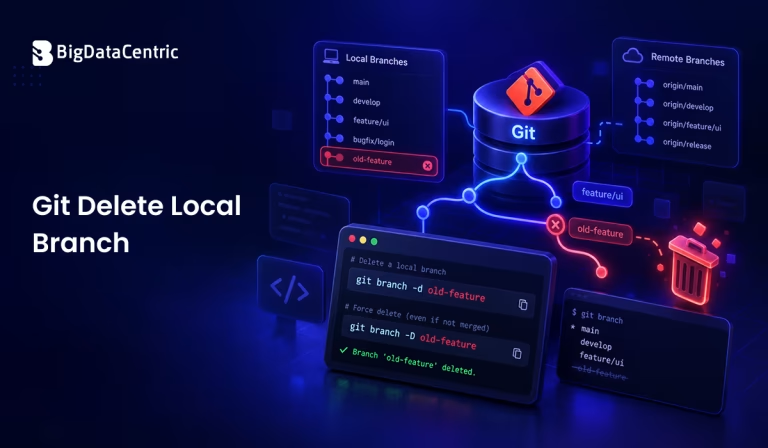
Submitting the form below will ensure a prompt response from us.
Git branches make it easier for developers to work on features, bug fixes, experiments, and releases without affecting the main codebase. However, repositories can accumulate old or completed branches over time. Removing these unused branches helps keep the local repository organized.
The git delete local branch operation is generally performed with the git branch -d command.
For example:
git branch -d feature-login
This deletes the local feature-login branch when Git determines that it has been safely merged.
What Does Deleting a Local Git Branch Mean?
A local Git branch is a reference to a particular line of development stored in your local repository.
When you delete a local branch, Git removes that branch reference from your local repository. The commits themselves may still exist through other branches or references.
For example:
main

|

+--- feature-login

|

+--- feature-search
After completing feature-login, you might remove it with:
git branch -d feature-login
The branch reference disappears from your local repository.
How to Delete a Local Branch in Git?
Before deleting a branch, switch to another branch. You cannot normally delete the branch that you currently have checked out.
First, view your branches:
git branch
Example:
* feature-login
  main
  feature-search
Switch to main:
git switch main
Then delete the branch:
git branch -d feature-login
Older Git workflows can use:
git checkout main
git branch -d feature-login
What is git branch -d?
The -d option performs a safe deletion.
git branch -d branch-name
For example:
git branch -d feature-payment
Git checks whether the branch has been merged into the current branch or another appropriate upstream relationship.
If the branch contains unmerged work, Git normally prevents the deletion.
This safety check helps avoid accidentally removing a branch containing changes you still need.
How to Force Delete a Local Branch?
Sometimes you intentionally want to delete an unmerged branch.
In that situation, use:
git branch -D branch-name
For example:
git branch -D experimental-feature
The uppercase -D is effectively a force-delete option.
Important
Use -D carefully. If the branch contains commits that are not referenced elsewhere, deleting the branch can make those commits harder to recover.
For most completed feature branches, prefer:
git branch -d branch-name
How to Check Which Branch You Are On?
Before deleting a branch, check your current branch:
git branch --show-current
You can also run:
git status
For example:
On branch main
Once you’re on another branch, you can safely delete the completed local branch.
How to List Local Git Branches?
Use:
git branch
Example:
  main
* feature-dashboard
  feature-api
  bugfix-login
The * identifies the currently checked-out branch.
To show both local and remote branches:
git branch -a
Git Delete Local Branch vs Remote Branch
Deleting a local branch does not automatically delete the corresponding remote branch.
For example:
git branch -d feature-login
removes the local branch only.
If you also need to remove the remote branch, use:
git push origin --delete feature-login
These are separate operations.
| Operation | Command | Purpose |
|---|---|---|
| Delete local branch | git branch -d branch-name | Safely deletes a merged local branch |
| Force delete local branch | git branch -D branch-name | Deletes a local branch even if it has unmerged changes |
| Delete remote branch | git push origin –delete branch-name | Removes the branch from the remote repository |
What Happens If the Branch Has Unmerged Changes?
Suppose you run:
git branch -d unfinished-feature
Git may return a message indicating that the branch is not fully merged.
This is a safety mechanism.
If you’re certain the changes are no longer required, you can use:
git branch -D unfinished-feature
Before doing so, review the branch history:
git log unfinished-feature
You can also compare it with your current branch:
git diff main...unfinished-feature
This gives you an opportunity to verify whether important changes would be lost.
How to Delete Multiple Local Branches?
You can delete several branches individually:
git branch -d feature-one
git branch -d feature-two
git branch -d bugfix-one
For force deletion:
git branch -D feature-one feature-two bugfix-one
Be particularly careful when using -D with multiple branches.
How to Clean Up Local Branches After Merging?
A common development workflow is:
- Create a feature branch.
- Develop and test the feature.
- Merge the branch into main.
- Switch to main.
- Delete the local feature branch.
Example:
git switch main
git pull
git branch -d feature-login
This keeps the local repository easier to navigate.
Python Example: Running Git Branch Commands
Git commands can also be executed from Python when automation is required.
import subprocess

branch = "feature-login"

result = subprocess.run(
    ["git", "branch", "-d", branch],
    capture_output=True,
    text=True
)

print(result.stdout)
print(result.stderr)
For automated workflows, checking the command’s return code is also important:
if result.returncode == 0:
    print("Branch deleted successfully.")
else:
    print("Branch could not be deleted.")
This can be useful when Git operations form part of a larger development automation script.
Common Mistakes When Deleting Git Branches
Trying to Delete the Current Branch
This will not work:
git branch -d feature-login
if you are currently on feature-login.
Switch first:
git switch main
Then delete it.
Using -D Without Checking the Branch
Force deletion can remove the only convenient reference to unmerged commits.
Assuming Local Deletion Removes the Remote Branch
It does not.
Use:
git push origin --delete branch-name
when remote deletion is also intended.
Forgetting to Check for Uncommitted Work
Before switching branches, check:
git status
Uncommitted changes may affect your ability to switch branches cleanly.
Best Practices for Git Branch Cleanup
Follow these practices when deleting local branches:
- Use git branch -d whenever possible.
- Review unmerged branches before using -D.
- Check your current branch before deletion.
- Use git status to review working-tree changes.
- Delete completed feature branches regularly.
- Treat local and remote branch deletion as separate operations.
Quick Reference: Git Delete Local Branch
| Task | Command | Purpose |
|---|---|---|
| List local branches | git branch | Displays all local branches |
| Check current branch | git branch –show-current | Shows the branch currently checked out |
| Switch branches | git switch main | Switches to the main branch |
| Safely delete local branch | git branch -d branch-name | Deletes a merged local branch safely |
| Force delete local branch | git branch -D branch-name | Deletes a local branch with unmerged changes |
| Delete remote branch | git push origin –delete branch-name | Removes a branch from the remote repository |
Improve Your Git Workflow
Streamline version control and development workflows with modern Git practices.
Conclusion
To delete a local branch in Git, the standard command is:
git branch -d branch-name
For example:
git switch main
git branch -d feature-login
If the branch contains unmerged changes that you intentionally want to discard, you can use:
git branch -D feature-login
The key difference is that -d performs a safer deletion check, while -D forces deletion. For everyday Git branch cleanup, the safe -d option should generally be preferred.
Understanding the difference between local and remote branches, checking branch status before deletion, and reviewing unmerged work can help maintain a clean and reliable Git repository.


Jayanti Katariya is the CEO of BigDataCentric, a leading provider of AI, machine learning, data science, and business intelligence solutions. With 18+ years of industry experience, he has been at the forefront of helping businesses unlock growth through data-driven insights. Passionate about developing creative technology solutions from a young age, he pursued an engineering degree to further this interest. Under his leadership, BigDataCentric delivers tailored AI and analytics solutions to optimize business processes. His expertise drives innovation in data science, enabling organizations to make smarter, data-backed decisions.