How to Revert Previous Commit in Git?

 Total View: 55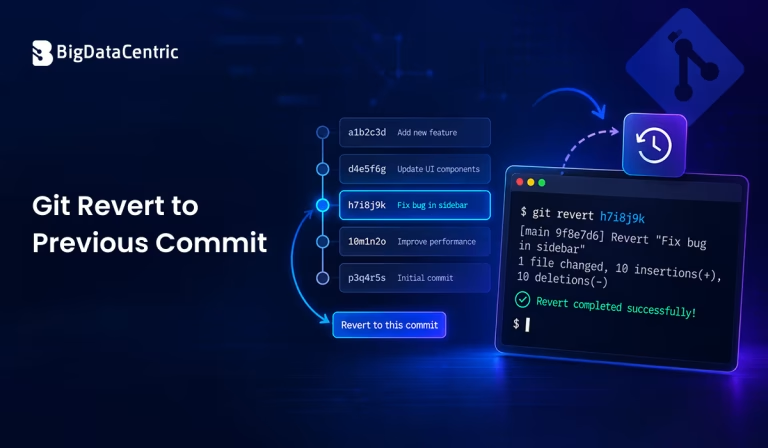
Submitting the form below will ensure a prompt response from us.
When working with Git, you may need to undo changes introduced by an earlier commit. The git revert to previous commit approach lets you undo a commit by creating a new commit that reverses its changes.
Unlike git reset, which can move the branch pointer and potentially rewrite history, git revert preserves the existing commit history. This makes it particularly useful when working with shared or remote branches.
What Does Git Revert to Previous Commit Mean?
The git revert command creates a new commit that reverses the changes introduced by an existing commit.
For example, suppose your history looks like this:
A → B → C
If commit C introduced unwanted changes, you can run:
git revert C
Git creates another commit:
A → B → C → D
Commit D reverses the changes introduced by C, while commits A, B, and C remain in the repository history.
How Do You Revert the Previous Commit in Git?
If the commit you want to undo is the most recent commit, use:
git revert HEAD
Here, HEAD represents the current commit.
For example:
git revert HEAD
Git may open your configured text editor so you can confirm or modify the revert commit message.
After saving the message, Git creates a new commit that reverses the previous commit.
You can verify the result with:
git log --oneline
Your history may look similar to:
8f42a1d Revert "Update API configuration"

31b7c22 Update API configuration
How Do You Revert to a Specific Previous Commit?
If you want to reverse the changes introduced by a particular commit, first find its commit ID:
git log --oneline
For example:
a72c91f Add payment validation

c38d210 Update checkout API

f91b642 Add checkout page
To revert c38d210, run:
git revert c38d210
Git creates a new commit that reverses the changes made by c38d210.
It does not remove that commit from the history.
How Do You Revert Multiple Commits?
You can revert multiple commits by specifying a range when appropriate.
For example:
git revert HEAD~3..HEAD
This tells Git to revert the commits after HEAD~3 through the current HEAD.
Another option is to specify individual commits:
git revert abc1234 def5678
When reverting multiple commits, pay attention to their order and any dependencies between their changes. Git may require you to resolve conflicts during the process.
What If Git Reports a Conflict During Revert?
A revert can produce conflicts when later changes depend on the code being reverted.
Git may display a message similar to:
CONFLICT (content): Merge conflict in app.py

error: could not revert abc1234
First, check the conflicted files:
git status
Open the affected files and resolve the conflicts. Then stage the resolved files:
git add app.py
Continue the revert:
git revert --continue
If you decide that you do not want to continue the operation, you can cancel it:
git revert --abort
What is the Difference Between Git Revert and Git Reset?
git revert and git reset can both undo changes, but they work differently.
| Feature | git revert | git reset |
|---|---|---|
| Creates a new commit | Yes | No |
| Preserves existing history | Yes | Can rewrite history |
| Suitable for shared branches | Generally safer | Requires more caution |
| Moves HEAD | No | Yes |
| Removes commits from branch history | No | Depending on mode, potentially |
| Main purpose | Reverse committed changes | Move branch/HEAD and adjust state |
For example:
git revert HEAD
creates a new commit that reverses the latest commit.
In contrast:
git reset --hard HEAD~1
moves HEAD back one commit and changes the working tree to match it. This can discard local changes and should be used carefully.
How Do You Revert a Commit Without Immediately Creating a Commit?
If you want Git to apply the reverse changes but make further modifications before creating the final commit, use:
git revert --no-commit HEAD
You can then inspect the changes:
git statusIf you need to temporarily set aside uncommitted changes while working with your Git repository, you can also stash changes in Git and restore them later.
Make any required adjustments and create the commit manually:
git commit -m "Revert previous changes"
This can be useful when combining several reversions or modifying the resulting changes before committing them.
How Do You Verify a Git Revert?
After completing the revert, check the repository status:
git status
Then review the commit history:
git log --oneline -5
You can also inspect the changes introduced by the revert:
git show HEAD
This helps confirm that the intended changes were reversed.
Can You Revert a Commit Already Pushed to GitHub?
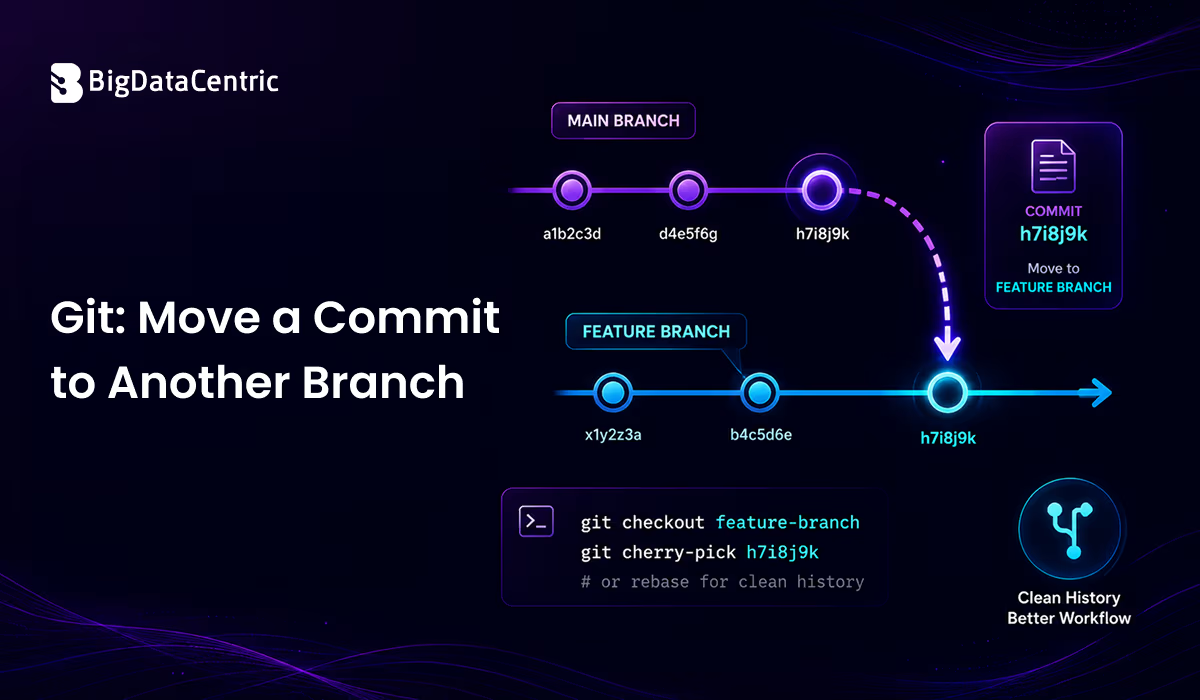
Yes. You can use git revert for a commit that has already been pushed to a remote repository. If you need to move a commit to a different branch instead of reverting it, you can also move a Git commit to another branch.
For example:
ggit revert abc1234
Then push the new revert commit:
git push origin main
Because the original commit remains in the history and the revert is represented by a new commit, this approach avoids rewriting the shared branch’s history.
For a shared branch, this is generally preferable to rewriting published history with commands such as git reset followed by a force push.
Common Commands for Git Revert
The git revert to previous commit operation undoes changes from an earlier commit while keeping the existing Git history.
| Requirement | Command | Purpose |
|---|---|---|
| Revert the latest commit | git revert HEAD | Reverses the most recent commit |
| Revert a specific commit | git revert <commit-id> | Reverses changes from a selected commit |
| Revert without committing immediately | git revert –no-commit HEAD | Applies the revert without creating a commit |
| Continue after resolving conflicts | git revert –continue | Continues the revert after conflicts are resolved |
| Cancel an ongoing revert | git revert –abort | Cancels the current revert operation |
| View commit history | git log –oneline | Displays a compact list of commits |
| View current changes | git show HEAD | Shows the changes in the current commit |
Tips for Reverting Git Commits
- Use git log –oneline to find the correct commit ID.
- Use git revert when you want to preserve existing history.
- Check git status if a revert produces conflicts.
- Use git revert –continue after resolving conflicts.
- Use git revert –abort if you need to cancel an in-progress revert.
- Be cautious when using git reset –hard because it can discard changes.
- Test the application after reverting important commits.
Having Issues With Your Git Workflow?
Our development experts can help you manage Git repositories, resolve workflow issues, and maintain efficient version control.
Final Thoughts
The git revert command provides a safe way to undo the changes introduced by a previous commit without deleting that commit from the repository history. For the most recent commit, git revert HEAD is usually the simplest approach.
When reverting a specific commit, use its commit ID with git revert <commit-id>. If conflicts occur, resolve them and use git revert –continue, or cancel the operation with git revert –abort.
Understanding the difference between git revert and git reset is important when deciding how to undo changes, particularly when working with shared branches.


Jayanti Katariya is the CEO of BigDataCentric, a leading provider of AI, machine learning, data science, and business intelligence solutions. With 18+ years of industry experience, he has been at the forefront of helping businesses unlock growth through data-driven insights. Passionate about developing creative technology solutions from a young age, he pursued an engineering degree to further this interest. Under his leadership, BigDataCentric delivers tailored AI and analytics solutions to optimize business processes. His expertise drives innovation in data science, enabling organizations to make smarter, data-backed decisions.