
How to Check if a File Exists in Bash?

 Total View: 58
Submitting the form below will ensure a prompt response from us.
When writing Bash scripts, one of the most common tasks is verifying whether a file exists before performing operations such as reading, writing, copying, deleting, or processing data. Checking file existence helps prevent runtime errors and makes shell scripts more reliable and efficient.
Bash provides several built-in test operators that allow developers and system administrators to determine whether a file, directory, symbolic link, or other filesystem object exists. These checks are commonly used in automation scripts, deployment pipelines, backup systems, and server management tasks.
In this guide, you’ll learn multiple ways to Bash Check if File Exists, along with practical examples, best practices, and common mistakes to avoid.
Why Check if a File Exists?
Before accessing a file, it’s important to verify that it is available.
Common use cases include:
- Reading configuration files.
- Processing log files.
- Creating backups.
- Validating user input.
- Automating deployments.
- Managing system resources.
A file existence check helps ensure that your script executes safely and avoids unexpected failures.
Methods to Check if a File Exists in Bash
Using the -f Operator
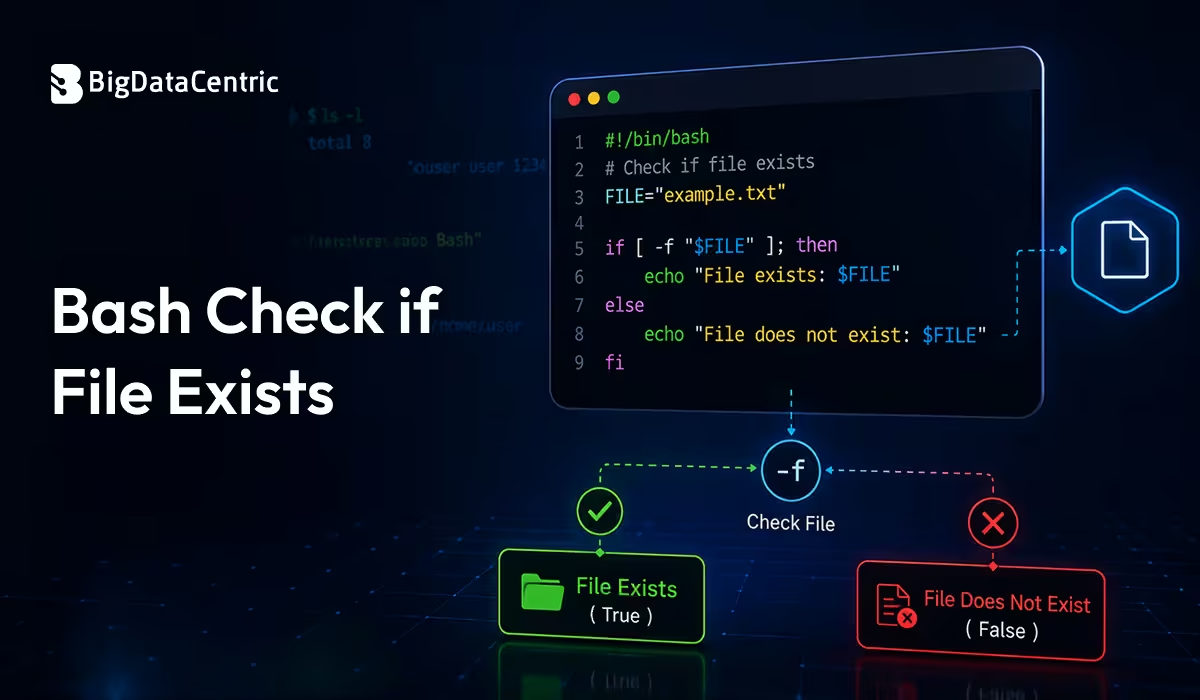
The most common method for checking whether a regular file exists is the -f operator.
Example
FILE="config.txt"


if [ -f "$FILE" ]; then

echo "File exists."

else

echo "File does not exist."

fi
Output
File exists.
What -f Checks
The -f operator returns true only if:
- The file exists.
- The file is a regular file.
- The file is not a directory.
Using the -e Operator
If you want to check whether any filesystem object exists, use the -e operator.
Example
PATH_NAME="sample.txt"

if [ -e "$PATH_NAME" ]; then

echo "Path exists."

else

echo "Path does not exist."

fi
Output
Path exists.
What -e Checks
The -e operator returns true if the path exists, regardless of whether it is:
- A file
- A directory
- A symbolic link
- Another filesystem object
Check if a Directory Exists
To verify whether a directory exists, use the -d operator.
Example
DIRECTORY="/var/log"

if [ -d "$DIRECTORY" ]; then

echo "Directory exists."

else

echo "Directory does not exist."

fi
Output
Directory exists.
This method is commonly used in deployment and backup scripts.
Check if a Symbolic Link Exists
Use the -L operator to determine whether a symbolic link exists.
Example
LINK="shortcut"

if [ -L "$LINK" ]; then

echo "Symbolic link exists."

else

echo "Symbolic link not found."

fi
Output
Symbolic link exists.
Using Double Brackets
Bash also supports double brackets, which provide additional flexibility and improved readability.
Example
FILE="report.txt"

if [[ -f "$FILE" ]]; then

echo "File exists."

fi
Double brackets are often preferred in modern Bash scripts.
Check if a File Does Not Exist
Sometimes you need to execute code only when a file is missing.
Example
FILE="backup.zip"

if [ ! -f "$FILE" ]; then

echo "File not found."

fi
Output
File not found.
The exclamation mark (!) negates the condition.
Create a File if It Does Not Exist
A common use case is creating a file only when it doesn’t already exist.
Example
FILE="output.log"

if [ ! -f "$FILE" ]; then

touch "$FILE"

echo "File created."

fi
Output
File created.
Check Multiple Files
You can verify the existence of multiple files within a loop.
Example
for FILE in app.log config.json data.csv

do

if [ -f "$FILE" ]; then

echo "$FILE exists."

else

echo "$FILE not found."

fi

done
This approach is useful when validating application dependencies.
Real-World Use Cases
Verify Configuration Files
if [ -f "/etc/app.conf" ]; then

echo "Configuration loaded."

fi
Check Log Files Before Processing
if [ -f "server.log" ]; then

cat server.log

fi
Validate Backup Files
if [ -f "database_backup.sql" ]; then

echo "Backup available."

fi
Common Bash File Test Operators
| Operator | Purpose | Checks |
|---|---|---|
| -e | Path Exists | Returns true if the specified path (file, directory, symbolic link, or other filesystem object) exists. |
| -f | Regular File | Returns true if the path exists and is a regular file. |
| -d | Directory | Returns true if the specified path is an existing directory. |
| -L | Symbolic Link | Returns true if the path is a symbolic link to an existing file. |
| -r | Readable File | Returns true if the file exists and has read permission. |
| -w | Writable File | Returns true if the file exists and has write permission. |
| -x | Executable File | Returns true if the file exists and has execute permission. |
| -s | Non-Empty File | Returns true if the file exists and its size is greater than zero. |
These operators can be combined to create more advanced validation logic.
Best Practices to Check Files in Bash
Use Quotes Around Variables
Always wrap file paths in quotes to handle spaces correctly.
Correct:
if [ -f "$FILE" ]; then

echo "Exists"

fi
Use -f for Regular Files
If you specifically need a file, prefer -f over -e.
Use -d for Directories
Avoid using file checks when validating directories.
Handle Missing Files Gracefully
Display meaningful messages or create fallback files when resources are unavailable.
Test Scripts in Different Environments
Validate scripts on development, staging, and production systems to ensure consistent behavior.
Common Mistakes to Avoid
Forgetting Quotes Around Variables
Incorrect:
if [ -f $FILE ]; then

echo "Exists"

fi
If the filename contains spaces, this may cause unexpected behavior.
Correct:
if [ -f "$FILE" ]; then

echo "Exists"

fi
Using -e When You Need a Regular File
Incorrect:
if [ -e "$PATH_NAME" ]; then

echo "Found"

fi
This condition may return true for directories and symbolic links.
Instead, use:
if [ -f "$PATH_NAME" ]; then

echo "Regular file found"

fi
when you’re specifically checking for files.
Build Reliable Automation and DevOps Solutions
Our experts develop custom automation scripts, CI/CD pipelines, and cloud-native solutions to streamline business operations.
Conclusion
Checking whether a file exists is a fundamental Bash scripting task that improves script reliability and prevents unnecessary errors. Bash provides several file test operators, such as -f, -e, -d, and -L, allowing developers to easily verify files, directories, and symbolic links.
For most file existence checks, -f is the preferred choice because it ensures the path is a regular file. By combining file tests with conditional statements and following Bash scripting best practices, you can build robust automation scripts, deployment tools, and system administration workflows that handle files safely and efficiently.


Jayanti Katariya is the CEO of BigDataCentric, a leading provider of AI, machine learning, data science, and business intelligence solutions. With 18+ years of industry experience, he has been at the forefront of helping businesses unlock growth through data-driven insights. Passionate about developing creative technology solutions from a young age, he pursued an engineering degree to further this interest. Under his leadership, BigDataCentric delivers tailored AI and analytics solutions to optimize business processes. His expertise drives innovation in data science, enabling organizations to make smarter, data-backed decisions.